23 - Calls answered in the dashboard
Agents can answer a profile's incoming WhatsApp voice calls in the admin dashboard and talk to the caller in the browser, with a headset or the computer's microphone and speakers. A call can also be recorded; the caller then always hears an announcement that says so first.
It is off until you turn it on: once on the server, then for each profile. Without it, MultiWA still logs every call and keeps its follow-up queue (the Calls API and the call.* webhooks).
Operators: start at Server setup. Owners and admins: Turning it on for a profile. Agents: For agents.
It does not cover:
- group calls: they ring with Answer on the phone;
- outgoing calls;
- profiles on the Baileys engine: answering needs whatsapp-web.js;
ENGINE_HOST=worker: the engines must run in the API, where the media server runs.
How it works
The API runs each profile's WhatsApp Web page. When a call comes in, MultiWA rings the agents who are online in the dashboard. When an agent presses Answer, WhatsApp Web takes the call, and the API's media server carries the audio between that page and the agent's browser over WebRTC. The audio uses one UDP or TCP port, straight to the API or through your TURN server, never through the web proxy. Ringing, answering and hanging up go over the dashboard's realtime connection.
Server setup
You need:
- the admin dashboard on HTTPS: browsers give a page the microphone only on a secure origin;
- one port on the API host, UDP and TCP, that the agents' computers can reach;
ENGINE_HOST=api(the default) and profiles on whatsapp-web.js.
-
Turn it on in
.env:CALLS_MEDIA_ENABLED=true# The address the agents' browsers reach the media port on: the server's LAN address or host nameCALLS_MEDIA_ANNOUNCED_ADDRESS=192.0.2.10# The one UDP+TCP port of all call audio (default 40000)CALLS_MEDIA_PORT=40000# Optional: a TURN server, for agents outside the LAN# CALLS_MEDIA_ICE_SERVERS=[{"urls":"turn:turn.example.com:3478","username":"u","credential":"p"}] -
Publish the port with the overlay file, added after the compose file you run:
docker compose -f docker-compose.yml -f docker-compose.calls-media.yml up -d# the full stack (MinIO and Nginx too)docker compose --profile full -f docker-compose.yml -f docker-compose.calls-media.yml up -d# with the production filedocker compose -f docker-compose.production.yml -f docker-compose.calls-media.yml up -d -
Open the firewall: the agents' subnet must reach
CALLS_MEDIA_ANNOUNCED_ADDRESSonCALLS_MEDIA_PORT, over UDP (preferred) and TCP (the fallback). -
Serve the admin over HTTPS. On plain HTTP calls still ring, but the banner says Answer on the phone and Calls in the dashboard need HTTPS. The admin sends
Permissions-Policy: camera=(self), microphone=(self). A reverse proxy in front of it must not send aPermissions-Policyof its own that leaves them out (microphone=(), orcamera=()for the camera of a video call). -
Check the reverse proxies. The dashboard opens its realtime connection on its own address, so the proxy there must forward
/socket.io/to the API, with WebSocket upgrades: with the admin on a subdomain of its own, that is the admin's proxy. A proxy the announcement upload goes through must accept a request body of up to 3 MB (a file of at most 2 MB, plus the multipart framing), with a read timeout of 120 seconds. See Docker Deployment. -
Restart, then check.
GET /api/v1/healthshows"callsMedia":{"enabled":true,"worker":"up"}. Each profile's readiness shows in its Calls section (below), and inGET /api/v1/calls/media/status.
Every setting is in the Configuration Reference.
Recordings storage
Recording needs a private place for the files: a directory on a persistent volume, or an S3 bucket of its own. The stock Compose files set up the directory (CALL_RECORDINGS_PATH and CALL_RECORDINGS_TMP, each on its own volume). Recording cannot be turned on until the storage refuses reads without credentials; MultiWA checks this then, and every night. See Call recordings.
Turning it on for a profile
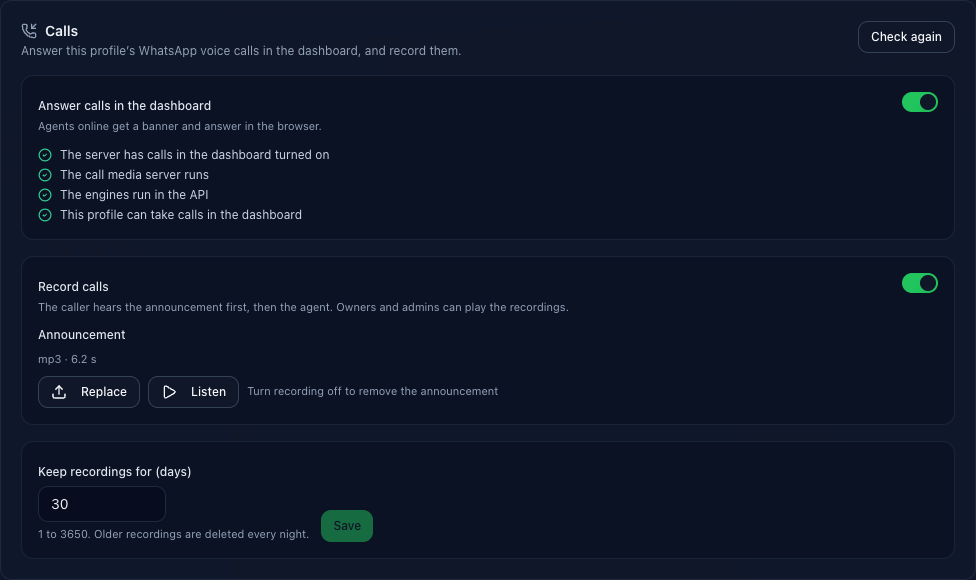
Owners and admins open the profile and find its Calls section.
-
Answer calls in the dashboard rings the agents online when the profile gets a call. Under it, a checklist says what answering needs. When everything is ready, it reads:
- The server has calls in the dashboard turned on
- The call media server runs
- The engines run in the API
- This profile can take calls in the dashboard
Otherwise each missing item says why, in the words of Troubleshooting. Check again reads the checklist again once you fixed something. A switch the server refuses shows the server's reasons.
-
Record calls needs an announcement first ("Upload an announcement first: the caller hears it before the agent."), and a recordings storage that passed its privacy check.
-
Announcement: Upload announcement (then Replace), Listen, and Remove, which asks first. While recording is on, Remove is hidden: "Turn recording off to remove the announcement".
-
Keep recordings for (days): 1 to 3650. A shorter period asks first, as the next nightly cleanup deletes the older recordings.
The API has the same settings: PUT /profiles/:id/calls-settings and the /profiles/:id/calls-announcement routes (API Specification).
The announcement
Every recorded call starts with it: the caller hears it right after an agent answers, and the agent hears the caller meanwhile. Say who records the call and why, in your callers' language.
- Formats: mp3, wav, ogg, webm or m4a. The type is read from the file itself, not from its name.
- Limits: at most 2 MB and 30 seconds (half a second more is accepted for encoders' padding). A file that does not say how long it is, as some browser recordings do not, is refused.
- A new upload replaces the previous announcement.
Recording and retention
- A recorded call is recorded from just before the announcement, in stereo: left the caller, right what the caller heard (the announcement, then the agent). The file is WebM/Opus, about 0.5 MB a minute.
- It is stored when the call ends, usually within a minute, and the
call.recording.readywebhook is sent. - When the recorder does not start, or the announcement does not play, the call goes on unrecorded, and the owners and admins are told.
- A recording cut short by a restart of the server is stored at the next start, marked Partial.
- Retention: each profile keeps its recordings for its retention period: 90 days unless you change it, from 1 to 3650. Every night at 02:30 server time, a cleanup deletes the older ones. The call stays listed, with "Recording deleted after its retention period", and
call.recording.deletedis sent. - Deleting a profile deletes its recordings too.
The Calls page
The Calls page lists a profile's calls. Its Answered tab has the calls answered in the dashboard: who answered, how long it rang for them, and how long they talked.

Owners, admins and members can follow a call up: Reply sends the caller a text, Call link a WhatsApp call link, Assign gives the call to someone of the team (an owner, admin or member), and Done and Reopen set its follow-up. Reject turns down a call that is still ringing. A viewer sees the queue.
For owners and admins, a call with a recording has:
- Play: the file loads, then plays, and you can seek in it;
- Download: the file,
call-<id>.webm; - Delete: asks first, then deletes the file. The call stays listed, with "Recording deleted by an admin". On an S3 bucket with versioning on, a deleted recording stays as a noncurrent version: keep versioning off on the recordings bucket, or expire noncurrent versions (Call recordings).
Every play, download and delete is in the audit log (call.recording.play, call.recording.download, call.recording.delete, with the user, the address and the browser). Members and viewers see that a call was recorded, but cannot play, download or delete it. A browser that cannot play WebM/Opus, such as an older Safari, offers the download only.
The Customer button of a one-to-one call opens the caller's customer profile under the call: the linked ID, the live lookup, notes and tags (Customers).
For agents
The organization's owners, admins and members answer calls. Each of them who is signed in to the dashboard, available, and not already on a call is rung. Viewers are not. The call controls show once a profile of the organization answers calls in the dashboard.
Settings → Calls
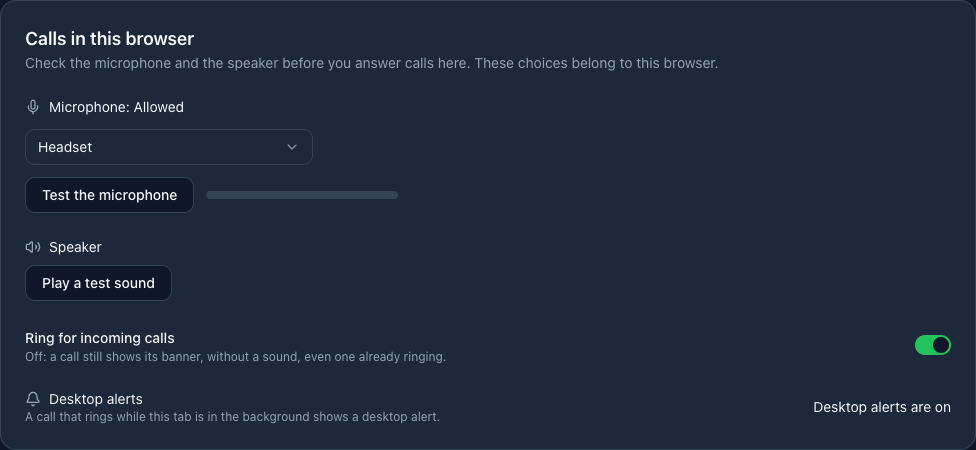
Before your first call, open Settings → Calls:
- Microphone: whether the browser allows it. Choose one, and Test the microphone shows its level.
- Camera: Test the camera shows what it sees, mirrored. A video call starts with your camera off.
- Speaker: Play a test sound.
- Ring for incoming calls: off, a call still shows its banner, without a sound.
- Desktop alerts: Turn on desktop alerts for calls that ring while the tab is in the background.
These choices belong to this browser.
When a call rings
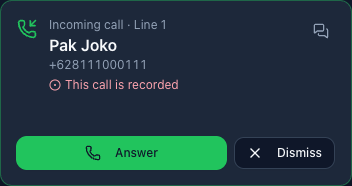
A banner shows at the top right of every page: the profile, the caller (the chat's name when it has one, and the number, or "Unknown number" when WhatsApp hides it), a link to the chat, and This call is recorded when it is.
- Answer takes the call. The focus moves to Answer when a call rings, unless you are typing in a field.
- Dismiss, or Escape, stops the ringing for you only: the call keeps ringing for the others.
- Answer on the phone, with the reason, shows when the call cannot be answered here: a group call, a profile that is not ready, a dashboard on plain HTTP, or a browser that cannot answer calls.
- A video call says how it is answered: Video call: your camera starts off, or by voice, and why (the server is busy with other video calls, the line can't take video here, or video is off on the server). See Video calls.
- Answered by Jane shows when someone else took the call; the banner then fades.
While a call rings:
- The ringtone, two tones every 3 seconds, rings from one tab of the browser. A tab the browser keeps silent until you click it says "Click anywhere on the page to hear the ringtone". Turn the ringtone off in Settings → Calls.
- A desktop alert shows when the dashboard tab is in the background, once you allowed them in Settings → Calls. Clicking it brings the tab forward.
- The tab's title flashes "📞 Incoming call".
On a call

The first time, the browser asks to use the microphone: allow it. The bar in the header then shows the call, on every page: on a row of its own under the header's controls, as above, or between them once the window is wide enough. It shows:
- Connecting… while the audio connects.
- On a recorded call, The caller hears the recording notice, with the seconds left. You hear the caller meanwhile; the caller hears you once it has played.
- The timer, Recording on a recorded call, and the network quality: Good, Fair or Poor.
- Mute silences your microphone. The microphone list switches to another microphone during the call, and keeps that choice for the next one.
- Hang up ends the call. On a recorded call it can take up to half a minute, while the recorder finishes.
- Hear the caller shows when the browser holds the caller's audio back until you click, as after a reload: click it to hear the caller.
Meanwhile the header shows On a call, and no other call rings for you.
Video calls
A one-to-one video call is answered with video while the server has room for one (CALLS_MAX_VIDEO_CALLS, 2 by default, for the whole server) and the profile's WhatsApp Web can take video. Otherwise it is answered by voice, and its banner says why.
- The video tile, at the bottom right of every page, shows the caller. Hide video folds it to its title bar while the call goes on; Show video brings the picture back.
- Your camera starts off. Camera in the bar turns it on: the first time, the browser asks to use it. Your own picture then shows in a corner of the tile, mirrored. Camera again turns it off: the caller sees black at once, and your camera's light goes off.
- A camera that does not go on stays off, and the bar says why: the browser blocks it, it is in use by another app, or WhatsApp did not take it.
- A reload with the camera on turns it on again by itself.
- On a recorded call the recording keeps both pictures: the caller full frame, and you in a corner while your camera is on. The Calls page plays it in a video player.
Availability
Available for calls, in the header, turns ringing on or off for you. Off, no call rings for you, in any tab. It stays off through a reload, but not into a new session: once you closed the dashboard (no tab open for 15 seconds), you are available again. A restart of the server makes everyone available again. While the dashboard has no realtime connection to the server, or the server has not yet said whether you are available, the switch is greyed out and reads Calls offline.
Reloads, tabs and lost connections
- A reload rejoins the call: the bar shows Connecting…, then the audio comes back.
- Another tab of the same browser shows "On a call in another tab", with Hang up and Take the call here, which moves the audio to that tab.
- One tab plays the ringtone, and Dismiss reaches your other tabs.
- A lost connection: the call waits 15 seconds for you to come back, then ends.
Recordings and privacy
- Private storage. Recordings and announcements are never served without the credentials of an owner or admin of their organization: their login, or their API key. Recording cannot be turned on unless the storage refuses reads without credentials, which MultiWA checks then and every night. When a check finds the storage public, recording is turned off on every profile and the owners and admins are alerted.
- Owners and admins only, audited. Every play, download and delete is in the audit log.
- No public URLs. The
call.recording.readyandcall.recording.deletedwebhooks carry the call's and the recording's ids. The audio is fetched through the API, with credentials. - The logs never carry the audio.
A legal note
Recording phone calls is regulated in many places: find out what applies to you before you turn recording on. MultiWA helps with the usual duties:
- Tell callers they are recorded. Recording cannot be turned on without an announcement, and every recorded call starts with it.
- Keep recordings no longer than needed. Set a short retention period.
- Honour requests to delete. Delete a recording on the Calls page, or with
DELETE /calls/:id/recording. On S3, keep versioning off on the recordings bucket, or expire noncurrent versions, so a deleted recording is gone for good. - Limit and audit access. Owners and admins only, every access in the audit log.
In Indonesia, for example, the Personal Data Protection Law (UU PDP, UU No. 27 Tahun 2022) applies to recordings of callers; other countries have their own rules on consent. This is not legal advice.
Troubleshooting
Why a profile cannot take calls in the dashboard, as its Calls section and the banner say it. The reason is the API's code: in reasons (of a refused change, and of each profile in GET /calls/media/status), and in a ringing call's unavailableReason:
| Reason | What the dashboard says | What to do |
|---|---|---|
engine_host_worker | This server is not set up for calls in the dashboard: ask your administrator | Run the engines in the API: ENGINE_HOST=api (the default), then restart. |
media_disabled | Calls in the dashboard are turned off on the server: ask your administrator | Set CALLS_MEDIA_ENABLED=true and CALLS_MEDIA_ANNOUNCED_ADDRESS, then restart the API. |
media_server_down | The call media server is down: ask your administrator | It restarts by itself. If it stays down, read the API log (a port already taken, a worker that cannot start); /api/v1/health shows callsMedia.worker. |
auto_reject_on | Auto-reject is on for this profile: turn it off | Turn off Auto-reject incoming calls on the profile page, then Save guardrails. |
profile_not_connected | The profile is not connected | Connect the profile. |
engine_not_supported | The profile’s engine cannot take calls: switch it to whatsapp-web.js | Switch the profile's engine to whatsapp-web.js, then connect it again. |
not_ready | WhatsApp Web is still loading | Wait a moment, then Check again. |
web_calling_disabled | WhatsApp has not enabled calling on WhatsApp Web for this number | WhatsApp turns calling on for each account. Until it does, answer on the phone. |
voip_stack_unavailable, module_missing, hooks_missing, not_prepared, page_error | WhatsApp Web changed, or is still loading | Check again in a minute. If it stays, disconnect and connect the profile. If it still stays, WhatsApp Web changed, and MultiWA needs an update. |
Other refusals:
| Reason | What the dashboard says | What to do |
|---|---|---|
no_announcement | Upload an announcement first | Upload one in the profile's Calls section. |
recordings_storage_unset | Recording storage is not set up on the server: ask your administrator | Set up the recordings storage. GET /calls/media/status names the missing or refused setting in server.recordings.problem. |
storage_not_private | The recording storage can be read without a login: ask your administrator to make it private | Make the bucket private (no public access, public URL or CDN on it), then turn recording on again. |
storage_check_failed | The recording storage could not be checked: try again, or ask your administrator | Try again, and check the storage's address and credentials. |
recording_on | Recording is on for this profile | Turn recording off before you remove the announcement. |
A group call rings with Answer on the phone and its unavailableReason, group_call (Group calls can’t be answered in the dashboard). Answer it on the phone.
A video call that is answered by voice says why on its banner:
| Banner | Cause | Fix |
|---|---|---|
| the server is busy with other video calls | CALLS_MAX_VIDEO_CALLS video calls run already | Wait, or raise CALLS_MAX_VIDEO_CALLS on a server with room for it: each video call costs about 1 GB and a CPU core. |
| this line can’t take video here | The profile's WhatsApp Web lacks its video call UI or camera mute (WhatsApp changed it) | Answer by voice; report it with the WhatsApp Web version. |
| video is turned off on this server | CALLS_MAX_VIDEO_CALLS=0 | Set it above 0 to answer video calls with video. |
Other problems:
| Symptom | Likely cause | Fix |
|---|---|---|
| The banner says Calls in the dashboard need HTTPS | The admin is on plain HTTP | Serve it over HTTPS. |
| Allow the microphone for this site to answer calls | The browser blocks the microphone | Allow it in the browser's site settings, and check that no proxy sends Permissions-Policy: microphone=(). |
| Could not connect audio | The agent's computer cannot reach the media port | Open CALLS_MEDIA_PORT, UDP and TCP, on CALLS_MEDIA_ANNOUNCED_ADDRESS to the agents. Agents outside the LAN need a TURN server (CALLS_MEDIA_ICE_SERVERS). |
| No call rings in the dashboard | The agent is unavailable or a viewer, or has no dashboard tab open; the profile's Answer calls in the dashboard is off; or the proxy on the dashboard's address does not forward /socket.io/ to the API | Check the header's switch and the profile's Calls section; have the dashboard's proxy forward /socket.io/ to the API, with WebSocket upgrades. |
| The announcement upload fails with a size error | The reverse proxy's body size limit | Allow a request body of 3 MB on /api/v1/profiles/<id>/calls-announcement: a 2 MB file, plus the multipart framing. |
| This browser cannot answer calls: use a current Chrome, Edge, Firefox or Safari | An old browser | Update it. |
| Allow the camera for this site to turn it on | The browser blocks the camera | Allow it in the browser's site settings, and check that no proxy sends Permissions-Policy: camera=(). |
| WhatsApp did not take the camera: the caller does not see you | WhatsApp Web's camera did not switch in time, or it has no camera mute | Try Camera again; the call goes on as it is meanwhile. |
Known limitations
- One call at a time for each profile, as WhatsApp Web carries one, and for each agent. A second call to the profile during a call reaches the dashboard only once the first one ends; its caller hears it ring meanwhile.
- The talk time is capped by
CALLS_MAX_TALK_MINUTES(120 by default): the call is then hung up. - A tab opened after a call started does not know about the call: it shows no bar until the call ends.
- Signing out during a call ends the call after 15 seconds, without asking first.
- Firefox and Safari: answering in them has not been checked on a live call yet. Use Chrome or Edge.
- A dialog open when a call rings keeps the keyboard focus. The banner still shows and is announced, but a click on it also closes the dialog, and a form being filled in can be lost.
- The admin sends no Content-Security-Policy. One added by a proxy must allow, for calls, the realtime connection on the dashboard's own address (
connect-src 'self' wss://<the dashboard's host>), and theblob:URLs the recording and announcement players play (media-src blob:). The microphone and the camera are governed by thePermissions-Policyinstead (Server setup). - One camera: the call uses the browser's default camera; there is no choice of camera yet.
API keys
The recordings, the call settings (GET /calls/media/status reads them) and the announcement are for owners and admins only, through an API key too: a key acts with its user's role. The follow-up and the assignee (PATCH /calls/:id), Reject, Reply and the call link are for owners, admins and members: a viewer's key gets 403 on them, and reads the list, a call and the open count. A key with an explicit scope list also needs:
| To | Scope (its name in the dashboard) |
|---|---|
| Reply to the caller, or send a call link | messages:write (Send Messages) |
| Play or download a recording | recordings:read (Read Recordings) |
| Delete a recording | recordings:delete (Delete Recordings) |
| Change the call settings; upload, listen to or remove the announcement | profiles:write (Manage Profiles) |
Change retentionDays | profiles:write and recordings:delete |
The other calls routes ask for no scope: the list, a call and the open count, the follow-up and the assignee (PATCH /calls/:id), Reject, and the media status. Keys with no scopes, or with *, skip these checks. Calls are answered by people signed in to the dashboard: an API key is never rung, and its socket cannot answer.
The API, realtime and webhooks
- REST: Calls: the list, the follow-up, the settings, the recordings and the announcement.
- Realtime: Calls answered in the dashboard: the dashboard's events and commands, for dashboard logins only, and
call:update. - Webhooks: Call events and Call recording events.
- SDKs: from 1.4.0, the TypeScript SDK (
client.calls), the Python SDK and the PHP SDK have a calls resource.